
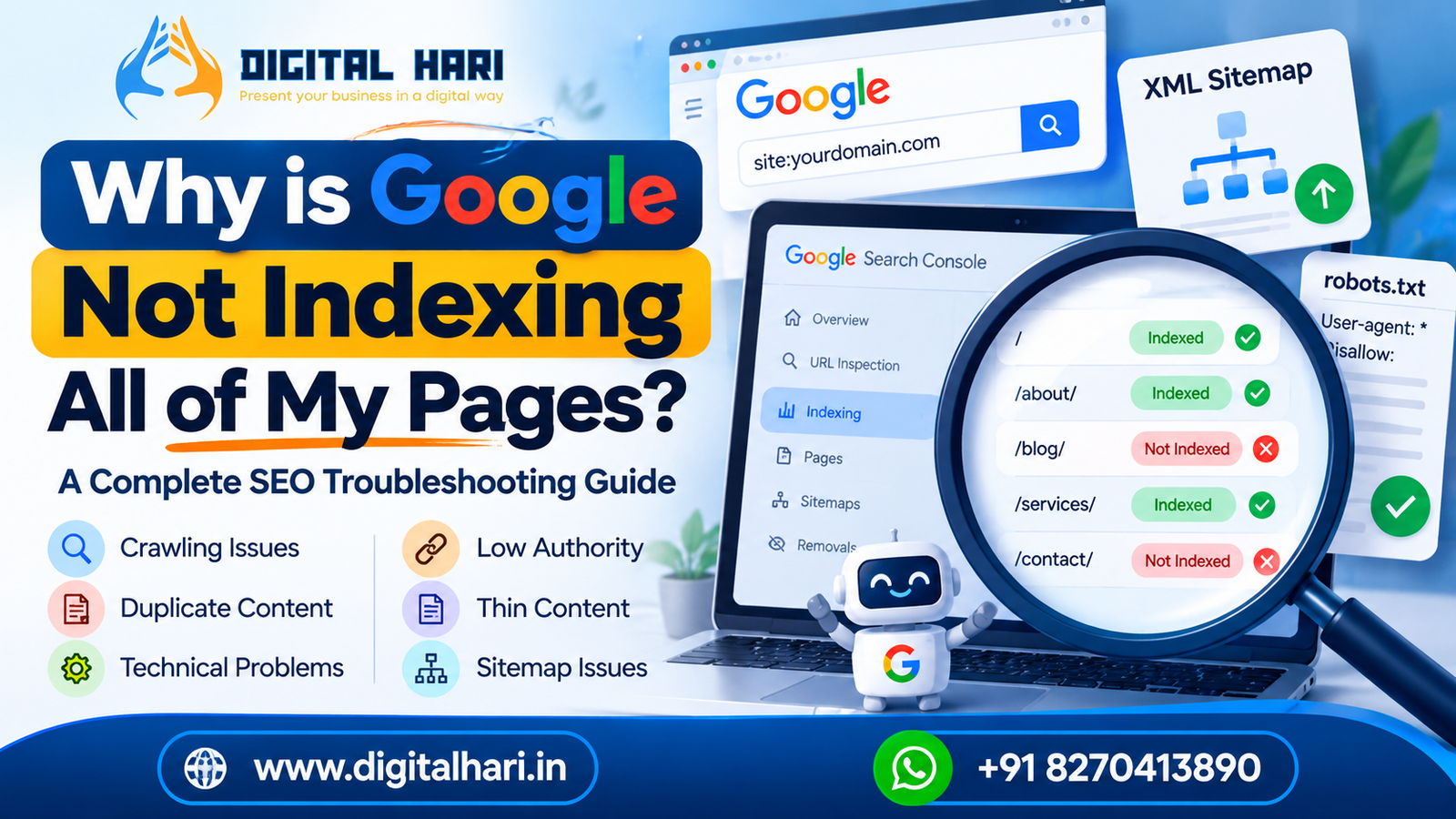
If you’ve published a website, submitted your sitemap to Google Search Console and waited for your pages to appear in Google Search, you may have faced this frustrating problem: some pages get indexed, but others remain missing from search results.
You may have checked your robots.txt file, added internal links, updated your content and even requested indexing manually. Yet Google still hasn’t indexed every page.
Why does this happen?
The answer isn’t always a technical error. Sometimes Google cannot crawl a page. Sometimes it finds a different canonical URL. In other cases, Google can access the page but doesn’t consider it useful enough to include in its search index at that time.
This guide explains why Google is not indexing all your pages, how to diagnose the problem in Google Search Console, and what you can do to improve your website’s indexability.
Whether you’re running a new WordPress blog, an ecommerce store, a font library, a job portal or a business website, this guide will help you understand the issue in simple language.
The goal isn’t to force Google to index every URL. It’s to help Google discover, crawl and understand the pages that genuinely deserve to appear in search results.
What Does Google Indexing Actually Mean?
Before fixing the problem, it’s important to understand three terms: discovery, crawling and indexing.
1. URL discovery
Google finds out that your page exists, usually through links, sitemaps or other discovery methods.
2. Crawling
Googlebot visits the URL and retrieves the page’s content and resources.
3. Indexing
Google processes the page and decides whether to include it in its search index.
These stages are related, but they are not the same. A page can be discovered without being crawled. It can be crawled without being indexed. And a page can be indexed without ranking prominently for its target keywords.
For example, imagine you publish 77 downloadable font pages on a new website. Google may discover all 77 URLs through your sitemap but index only some of them initially.
That doesn’t automatically mean your sitemap is broken. It means you need to investigate what is happening with the remaining pages.
Remember: Google indexes individual URLs, not a website as one single item.
Why Is Google Not Indexing All of My Pages?
There is no single explanation for every website. The correct solution depends on the status shown in Google Search Console and the actual condition of the affected URLs.
Here are the most common reasons.
1. Your Website Is Too New
If you launched your website a few days ago, you may simply need to give Google more time.
Google needs to discover your URLs, crawl them and process their content. This process isn’t guaranteed to happen immediately.
New websites often have fewer established links, less search history and limited content for Google to discover through its crawling systems.
For example, if you publish 10 new pages every day, Google may not crawl and index all of them at the same speed.
What should you do?
-
Verify your website in Google Search Console.
-
Submit a correct XML sitemap.
-
Link important new pages from relevant existing pages.
-
Make sure Google can access the content.
-
Request indexing for a few important URLs when appropriate.
-
Monitor the Page indexing report over time.
Google explains that crawling can take days to weeks and that requesting indexing does not guarantee inclusion in search results.
Don’t assume that a page has failed simply because it hasn’t appeared after a few hours.
2. Your Page Has Very Little Unique Value
This is one of the most important issues to investigate when Google discovers your pages but doesn’t include them in the index.
Imagine that you operate a font library. Your website contains hundreds of downloadable fonts, but every font page has the same short description:
“Download this beautiful font for free. Use it for your creative projects.”
Only the font name changes.
From a visitor’s perspective, these pages may offer very little information beyond the download itself. If similar font pages are available on many other websites, your pages may also struggle to stand out.
The solution isn’t to add 1,000 words of filler to every page.
Instead, consider what information would genuinely help someone choose and use the font:
-
A clear font preview.
-
Available weights and styles.
-
Supported languages and characters.
-
Licence and usage information.
-
Compatible file formats.
-
Practical design examples.
-
Clear download instructions.
-
Relevant alternatives and comparisons.
The same principle applies to ecommerce products, job listings, location pages, service pages and blog posts.
A page needs a clear purpose and useful information—not just a unique URL.
Google’s spam policies identify scaled content abuse as the creation of many pages primarily to manipulate search rankings without adding value, regardless of whether AI or another method was used.
For help developing a stronger content plan, explore Digital Hari’s content marketing services.
3. Your Pages Are Too Similar to Other Pages
Duplicate or near-duplicate content can create indexing confusion.
For example, a product might be accessible through several URLs:
-
/products/blue-shirt/ -
/products/blue-shirt/?size=large -
/products/blue-shirt/?sort=popular
Depending on how the website works, these URLs may show substantially the same content.
Google may choose one URL as the canonical version and not index the others separately.
This is not automatically a penalty. Search engines often need to consolidate duplicate URLs to avoid showing several versions of the same page.
However, you should investigate when Google selects a canonical URL that you didn’t intend.
How to fix it:
-
Identify the preferred URL for each unique page.
-
Use a consistent self-referencing canonical on pages that should stand independently.
-
Use redirects when duplicate URLs should permanently lead to one preferred URL.
-
Include preferred canonical URLs in your sitemap.
-
Make internal links point to the preferred URL.
-
Avoid creating unnecessary URL variations.
Google treats redirects and rel="canonical" annotations as stronger canonical signals than sitemap inclusion alone.
If your website has thousands of category or product URLs, a structured WordPress web development and technical SEO review may help identify the source of the duplication.
4. Your Page Has a noindex Directive
A noindex directive tells Google not to include a page in its search index.
It can appear in a page’s HTML or in an HTTP response header.
For example:
<meta name="robots" content="noindex">This can be useful for private or low-value pages that should not appear in search results. But if the directive is accidentally added to an important service page or blog post, indexing may be blocked.
This sometimes happens after website development, staging migrations or changes to SEO plugin settings.
What to check:
-
Open the affected URL in Google Search Console.
-
Inspect the page and review the indexing information.
-
Check the rendered HTML for a
noindexmeta tag. -
Check the HTTP response headers for an
X-Robots-Tag. -
Review your WordPress or SEO plugin settings.
If you want Google to index the page, remove the unintended directive and make sure Google can crawl the URL to see the change.
One important detail: blocking a URL in robots.txt can prevent Google from seeing its noindex directive. These controls serve different purposes.
5. Your Robots.txt File Is Blocking Google
The robots.txt file tells compliant crawlers which areas of a website they may access.
A blocking rule can prevent Googlebot from crawling pages you actually want indexed.
For example, a rule like this blocks crawling across the site:
User-agent: *
Disallow: /
Do not copy this rule onto a live website unless you intentionally want to block crawling across the entire site.
Check your robots.txt file and confirm that important pages, directories and resources aren’t accidentally blocked.
Also remember that allowing crawling does not guarantee indexing. Robots.txt is a crawling control, not a guarantee that a URL will be included in Google Search.
6. Google Has Discovered Your Page but Hasn’t Crawled It
Google Search Console may show the status Discovered – currently not indexed.
In simple terms, Google knows about the URL but hasn’t crawled it yet.
Possible factors to investigate include:
-
The website was launched recently.
-
Google has many URLs to consider.
-
The page is difficult to discover through internal links.
-
The server has availability or response problems.
-
The URL is one of many unnecessary variations.
-
The page isn’t a high priority compared with other URLs Google knows about.
Don’t assume that every page with this status has a server error. Check the actual URL, sitemap, internal linking and site availability before deciding what to fix.
What to do:
-
Confirm the URL is in the correct sitemap.
-
Add a contextual internal link from a relevant, accessible page.
-
Check that the URL returns a successful response.
-
Review the Crawl Stats report if server problems are suspected.
-
Avoid generating unnecessary URL variations.
-
Monitor whether Google crawls the page later.
Google recommends checking crawling errors, sitemap discovery, robots.txt rules and server capacity when new URLs aren’t being crawled as expected.
7. Google Has Crawled Your Page but Hasn’t Indexed It
Another common status is Crawled – currently not indexed.
This is different from a page that Google hasn’t crawled.
In this case, Google has visited the URL but has not included it in the index at the time reflected by the report.
Start by reviewing the actual page rather than repeatedly submitting it for indexing.
Ask yourself:
-
Does it offer something useful that similar pages don’t?
-
Does it answer the intended search query?
-
Is the main content accessible and complete?
-
Is it too similar to another page on your website?
-
Does the page have a clear canonical URL?
-
Is it an important page or an unnecessary URL variation?
-
Does it provide a worthwhile experience for visitors?
You don’t need to delete every page with this status. Some pages are useful to visitors even if they aren’t intended to receive organic search traffic.
However, if an important landing page remains unindexed, investigate and improve the specific issues you find.
8. Your Sitemap Is Missing Pages or Contains the Wrong URLs
An XML sitemap helps Google discover URLs you want considered for indexing.
But a sitemap is not a command that forces Google to index every listed page.
Common sitemap problems include:
-
Important pages are missing.
-
URLs return 404 or server errors.
-
Redirected URLs are included instead of their final destinations.
-
Duplicate URLs are listed.
-
URLs use the wrong protocol or hostname.
-
Non-canonical pages are included.
-
Pages you intentionally marked
noindexare listed.
For a WordPress website, check the sitemap generated by your SEO plugin or CMS. Make sure it reflects the URLs you want Google to consider.
Then submit the sitemap in Google Search Console and review whether Google can fetch and process it.
Don’t keep resubmitting an unchanged sitemap several times a day. Fix the underlying problem and allow Google time to process the updated information.
9. Your Page Returns an HTTP Error
Google needs to retrieve the page successfully before it can properly process its content.
Common HTTP responses that need investigation include:
| Status or issue | What it can mean |
|---|---|
200 OK |
The server successfully returned the page; indexing is still not guaranteed. |
301 or 308 |
The URL permanently redirects to another location. |
404 Not Found |
The requested page does not exist at that URL. |
5xx server error |
The server failed to complete the request. |
403 Forbidden |
Access to the page was denied. |
429 Too Many Requests |
Requests may be rate-limited. |
A successful HTTP response does not automatically mean the page will be indexed. Google also considers whether the page contains indexable content and whether it meets its search policies.
Check the response for affected URLs and correct the actual problem. Don’t redirect every missing URL to your homepage; use a relevant replacement when one exists, and return a proper 404 or 410 when the content has genuinely been removed and has no suitable replacement.
10. Your Internal Linking Is Weak
Google discovers many URLs through links found on pages it has already crawled.
If a page is published but isn’t linked from anywhere useful on your website, it may be harder for Google and visitors to find it.
For example, a new blog post might exist in your CMS and sitemap but have no link from your blog archive, related articles or service pages.
Improve your internal linking by:
-
Linking to important pages from relevant existing content.
-
Using descriptive anchor text.
-
Linking related articles together where it helps readers.
-
Including key service pages in suitable navigation or resource sections.
-
Ensuring important pages are accessible through normal crawlable links.
-
Avoiding unnecessary chains of redirects.
Don’t add internal links merely to reach an arbitrary number. A few relevant links can be more useful than dozens of unrelated links.
For example, an article about indexing problems can naturally link to SEO services and AI Search Optimization when explaining technical SEO and search visibility.
11. Your Website Has Too Many Low-Value URLs
Some websites create large numbers of URLs automatically.
This can happen with:
-
Search result pages
-
Filters and sorting options
-
Tag archives
-
Author archives
-
Date archives
-
Product variations
-
Tracking parameters
-
Empty categories
-
Paginated URLs
-
Automatically generated location pages
Some of these pages are useful and should remain accessible. Others may add little value and consume attention that should be directed toward important content.
Review your URL inventory and decide which pages need to be indexed, which should be consolidated, and which should be excluded from search.
Do not automatically block every archive, tag or paginated page. Make decisions based on the purpose of the page, its content and how users navigate your website.
For large WordPress websites, review the settings in your SEO plugin and check that the sitemap contains the intended canonical URLs.
12. Your Website Loads Slowly or Has Server Problems
Website performance is not a universal explanation for indexing issues, but server problems can affect Google’s ability to retrieve pages reliably.
If the server frequently returns errors, takes too long to respond or reaches capacity limits, Google may reduce crawling.
Check:
-
Server response errors.
-
Hosting availability.
-
Crawl Stats in Search Console.
-
Whether important content appears in the rendered page.
-
Whether resources needed to display the page are accessible.
Don’t assume that a low PageSpeed score automatically explains why a page isn’t indexed. First determine whether Google can crawl and render the affected URL successfully.
If the website has genuine performance or reliability issues, address them because they can also harm the visitor experience.
13. Your Content Is Generated at Scale Without Enough Value
If you’re adding dozens or hundreds of similar pages every day, review how those pages are created.
For example, a font directory, product catalogue or job portal might publish many pages based on templates. Templates themselves are not the problem. The concern is whether each page serves a real purpose and offers enough useful information.
For a job portal, a useful listing could include the employer, role, location, eligibility, application instructions and closing date when those details are available.
For a font library, it might include previews, available styles, licensing details and supported characters.
For a service website, it might explain the service, who needs it, what is included and how the process works.
Google’s policy on scaled content abuse applies regardless of whether pages are created by AI, manual processes or a mixture of methods.
If you publish using AI, review Google’s guidance on generative AI content before scaling the workflow.
14. Google Has Selected a Different Canonical URL
Sometimes Google indexes a different URL from the one you submitted.
Search Console may report Duplicate, Google chose different canonical than user or Alternate page with proper canonical tag, depending on the situation.
For example, you may want Google to index:
https://example.com/services/seo/
But Google may select another URL because the pages appear to be duplicates or your canonical signals conflict.
Investigate:
-
The canonical declared in the page HTML.
-
The URL included in the sitemap.
-
Internal links to the page.
-
Redirects between URL versions.
-
HTTP versus HTTPS.
-
wwwversus non-www. -
Trailing slash differences.
-
Duplicate pages with parameters.
Choose one preferred URL for each unique page and make the signals consistent. Google ultimately determines the canonical it uses, so your declared preference is not an absolute guarantee.
15. Your Page Is Indexed but Not Ranking
This is a different problem, and it’s important not to confuse it with indexing.
A page may already be in Google’s index but not appear for the keywords you are searching.
Possible reasons include:
-
The page targets the wrong search intent.
-
Other pages better answer the query.
-
The topic is highly competitive.
-
The page offers limited original value.
-
The title and content don’t clearly communicate relevance.
-
The page has limited visibility for the specific search terms.
-
The content has not yet built a strong reputation with its intended audience.
Start by inspecting the URL in Search Console. If Google reports that the page is indexed, review its performance data and the queries for which it receives impressions.
Then work on relevance, content quality, page structure and useful internal links.
If the page is indexed but ranks poorly, repeatedly requesting indexing is unlikely to solve the underlying ranking problem.
How to Check Why Google Is Not Indexing Your Pages
Google Search Console should be your first stop when investigating indexing problems.
Here is a beginner-friendly process you can follow.
Step 1: Open Google Search Console
Visit Google Search Console and select the correct website property.
Make sure you are checking the right domain and URL version. For example, https://example.com and https://www.example.com can be different URL properties.
Step 2: Open the Page Indexing Report
Navigate to the Indexing → Pages report.
Depending on your website, you may see categories such as:
-
Not found (404)
-
Excluded by
noindex -
Blocked by robots.txt
-
Redirected page
-
Duplicate without user-selected canonical
-
Alternate page with proper canonical tag
-
Discovered – currently not indexed
-
Crawled – currently not indexed
The exact reasons shown depend on Google’s findings for your website.
Step 3: Select the Relevant Issue
Click the status that includes the URLs you are concerned about.
Don’t assume every excluded URL is a problem.
For example, a login page, cart page or duplicate URL may be correctly excluded from search results.
Your job is to determine whether the affected pages are supposed to be indexed.
Step 4: Inspect an Individual URL
Use the URL Inspection tool and enter the full URL.
Check the information Google provides about the URL’s indexing status and canonical selection.
Where available, run a live test to see whether Google can access the page now.
Important: A successful live test means the URL is accessible for that test. It does not guarantee that Google will add the page to its index.
Step 5: Fix the Actual Problem
Use the report to determine what needs to change.
-
For an unintended
noindex, remove the directive. -
For a blocked URL, review the robots.txt rules.
-
For duplicate pages, correct canonical signals or consolidate the URLs.
-
For missing pages, check links and sitemap coverage.
-
For server errors, investigate hosting and HTTP responses.
-
For crawled but unindexed pages, review the page’s usefulness, originality and search intent.
Step 6: Request Indexing When Appropriate
Once you have corrected an important page, you can request indexing through URL Inspection.
For larger groups of URLs, maintain a correct sitemap.
Google recommends these tools for helping it discover updated pages, but neither method guarantees indexing. Repeatedly submitting the same unchanged URL won’t make it get crawled faster.
Google Search Console Indexing Status: What Should You Do?
Use this table as a quick reference when troubleshooting your website.
| Search Console status | What it generally means | Recommended action |
|---|---|---|
| Discovered – currently not indexed | Google knows the URL but hasn’t crawled it yet | Check discovery, internal links, sitemap and server availability |
| Crawled – currently not indexed | Google crawled the URL but hasn’t indexed it | Review content value, duplication, canonical signals and page purpose |
Excluded by noindex |
A directive tells Google not to index the page | Remove it if indexing is intended |
| Blocked by robots.txt | Crawling is restricted by a robots rule | Review the rule if the page should be crawlable |
| Duplicate, Google chose different canonical | Google selected another URL as canonical | Review duplication and canonical consistency |
| Alternate page with proper canonical tag | Google recognizes the URL as an alternate version of another page | Check whether the canonical choice is intentional |
| Page with redirect | The URL redirects elsewhere | Check whether the redirect is intended and the destination is correct |
| Not found (404) | The URL does not return a page that exists | Restore it, redirect to a relevant replacement or leave the correct 404 response |
These labels and their interpretation can vary with the information available in Search Console. Always inspect the actual URL before changing your website.
Does Google Index Every Page on a Website?
No. You should not expect every URL on a website to be indexed.
A website may contain pages that are duplicates, unnecessary, inaccessible, intentionally excluded or not useful enough to appear in search results.
For example, an ecommerce website might have 10,000 URLs created by product filters, but only a smaller set of unique product and category pages may be appropriate for indexing.
Similarly, a blog may contain author archives, tag pages and tracking URLs that don’t all need to appear in Google Search.
A better goal is to ensure that your important, unique and indexable pages have a clear path to discovery and provide a useful reason to be included in search results.
Don’t treat a 100% indexing rate as the only measure of SEO success.
Does Requesting Indexing in Google Search Console Work?
Yes, requesting indexing can be useful when you have published or substantially updated an important page.
However, it is a request—not a guarantee.
Before requesting indexing:
-
Confirm the URL returns the correct page.
-
Check that it isn’t blocked by robots.txt.
-
Make sure it doesn’t contain an unintended
noindex. -
Check the canonical URL.
-
Ensure the page contains useful, indexable content.
-
Make sure relevant internal links point to it.
Then use URL Inspection to request indexing.
For many URLs, submit or update your sitemap instead of manually requesting each URL.
Google also notes that crawling and indexing may take time, and repeated requests for the same URL do not speed up the process.
Do Backlinks Help Google Discover and Index Pages?
Backlinks can help Google discover URLs and provide signals about how pages relate to the wider web. But backlinks are not a guaranteed indexing method.
A website with no external links can still have pages indexed. Equally, a page with backlinks may remain unindexed.
Focus on earning relevant links from genuinely useful content, industry resources, partners and publications. Avoid buying large quantities of manipulative links or publishing thin guest articles purely to manufacture backlinks.
Internal links also matter for discovery. Link to important pages from relevant, accessible pages on your own website.
For example, a technical SEO article can link naturally to your main SEO service page when readers need help with a wider SEO strategy.
If you are planning a broader website visibility strategy, Generative Engine Optimization and Answer Engine Optimization can complement your traditional SEO work. Neither replaces the need to fix crawling, indexing or content problems.
What About Social Media, Reddit and Quora Links?
Sharing a new page on relevant social platforms can help people discover it and may bring visitors who find the content useful.
You can share an article in a relevant Reddit discussion, answer a genuine question on Quora, or promote it on LinkedIn and other platforms when the content directly helps the audience.
However, social sharing is not a guaranteed way to get a page indexed, and social engagement should not be treated as a direct indexing switch.
Avoid posting the same promotional link in unrelated discussions. Add value first, follow community rules and share the page only when it answers the question being discussed.
A Practical 14-Day Indexing Troubleshooting Plan
Use this plan to organize your investigation. It is a workflow, not a promise that Google will index your pages within 14 days.
Days 1–2
Identify the affected URLs
Export or record the important URLs from Search Console. Separate indexing problems from pages that are indexed but not ranking.
Days 3–4
Check technical access
Inspect HTTP responses, robots.txt, noindex, redirects and canonical URLs. Fix errors that prevent intended indexing.
Days 5–7
Improve the pages
Add missing information, remove unnecessary repetition, clarify the page’s purpose and strengthen relevant internal links.
Days 8–10
Check sitemap and discovery
Confirm the sitemap lists the preferred URLs and that important pages can be reached through normal links.
Days 11–14
Monitor progress
Request indexing for a few priority URLs where appropriate. Review Search Console for changes and continue investigating pages that remain excluded.
Some pages may be indexed earlier, while others may take longer or remain outside the index. Use the schedule to organize your work, not as a fixed Google indexing timeline.
Common Indexing Mistakes to Avoid
When troubleshooting indexing, avoid these common mistakes:
-
Submitting the sitemap repeatedly without correcting problems.
-
Requesting indexing every day for the same unchanged page.
-
Blocking important pages in robots.txt.
-
Adding
noindexto pages you want indexed. -
Using different canonical URLs across the sitemap and page HTML.
-
Publishing many near-identical pages just to target more keywords.
-
Adding irrelevant internal links simply to increase link counts.
-
Buying spammy backlinks to force indexing.
-
Redirecting every deleted URL to the homepage.
-
Assuming that a green live test guarantees indexing.
-
Deleting useful pages solely because they haven’t been indexed yet.
-
Confusing an indexing problem with a ranking problem.
A careful diagnosis is usually more useful than changing multiple SEO settings at once.
How to Improve Google Indexing for a WordPress Website
If your website uses WordPress, check these settings before making major technical changes.
1. Check search engine visibility. In WordPress, go to Settings → Reading and confirm that “Discourage search engines from indexing this site” is not enabled on your live website.
2. Review your SEO plugin. If you use Yoast SEO or another SEO plugin, check the indexing settings for posts, pages, categories and other content types.
3. Verify your sitemap. Open the sitemap URL and confirm it works. Make sure it contains the preferred URLs you want Google to consider.
4. Review canonical tags. Check that important pages don’t accidentally point to another URL as their canonical.
5. Inspect the affected pages. Use Google Search Console’s URL Inspection tool instead of assuming the same issue affects every page.
6. Check redirects and HTTP responses. Confirm that pages load correctly and that old URLs redirect only when appropriate.
7. Review your content. Make sure each important page has a clear purpose and enough useful information to justify its existence.
If you need help with technical implementation, WordPress Web Development and Website Design & Development are relevant starting points.
Frequently Asked Questions About Google Indexing
1. Why is Google not indexing all my pages?
Google may not index every page because it hasn't crawled the URL yet, the page is blocked, a noindex directive is present, another URL is selected as canonical, or the page doesn't provide enough unique value. Check the specific URL in Google Search Console before deciding what to fix.
2. How long does Google take to index a new page?
There is no fixed timeline. Google says crawling can take anywhere from a few days to a few weeks, and requesting indexing does not guarantee inclusion.
3. Does submitting an XML sitemap guarantee indexing?
No. A sitemap helps Google discover URLs and understand which URLs you prefer to appear in search results, but Google decides whether to crawl and index them.
4. What is the difference between “Discovered – currently not indexed” and “Crawled – currently not indexed”?
“Discovered – currently not indexed” means Google knows about the URL but hasn't crawled it yet. “Crawled – currently not indexed” means Google has crawled the URL but has not included it in the index at the time reflected by the report.
5. Can thin content prevent indexing?
Pages with little useful or original information may be less likely to be included in search results. Improve them by addressing the reader's needs, adding relevant information and removing unnecessary repetition. Adding words alone does not guarantee indexing.
6. Can backlinks help unindexed pages?
Not automatically. First determine whether each page is useful, necessary and intended for search. Improve valuable pages, consolidate genuine duplicates, and remove or exclude pages that no longer serve a purpose.
8. Why is my page indexed but not ranking?
Indexing and ranking are different. An indexed page may not rank well because it doesn't match the search intent, competing pages are more relevant, or the page needs better content and stronger overall SEO. Review its performance data and target queries in Search Console.
9. Does Google index AI-generated content?
AI-assisted or AI-generated content can be eligible for indexing, but using AI does not guarantee inclusion or rankings. Google warns against producing large volumes of content primarily to manipulate search rankings without adding value.
10. How can I check whether my page is indexed?
Use Google Search Console's URL Inspection tool for the most useful URL-specific information. A search such as site:example.com/page-url/ can provide a quick indication, but it is not a complete or definitive indexing report.
Final Thoughts: Fix the Cause, Not Just the Indexing Status
If Google is not indexing all your pages, don’t immediately assume your website has a penalty or that you need more backlinks.
Start with the evidence.
Find out whether Google has discovered the URL, whether it has crawled the page, whether the page is technically indexable, and whether Google has selected the intended canonical URL.
Then examine the content itself. Does it offer something useful? Is it distinct from similar pages? Can visitors reach it through relevant internal links?
For most website owners, the best approach is to combine technical SEO, useful content, clear website structure and consistent monitoring rather than repeatedly requesting indexing.
About Digital Hari
Digital Hari, founded by Hariharan Gandhi, shares practical guidance on SEO, website development, content marketing and AI Search Optimization. The aim is to help businesses understand search visibility problems and build websites that provide useful information to their audiences.